
PH33 website not loading on your phone? First check which page has failed: ph33p.ph itself, or the separate website opened by an account button. Then test one browser and network change at a time. A blank page does not, by itself, mean that your account is locked or that the entire service is offline.
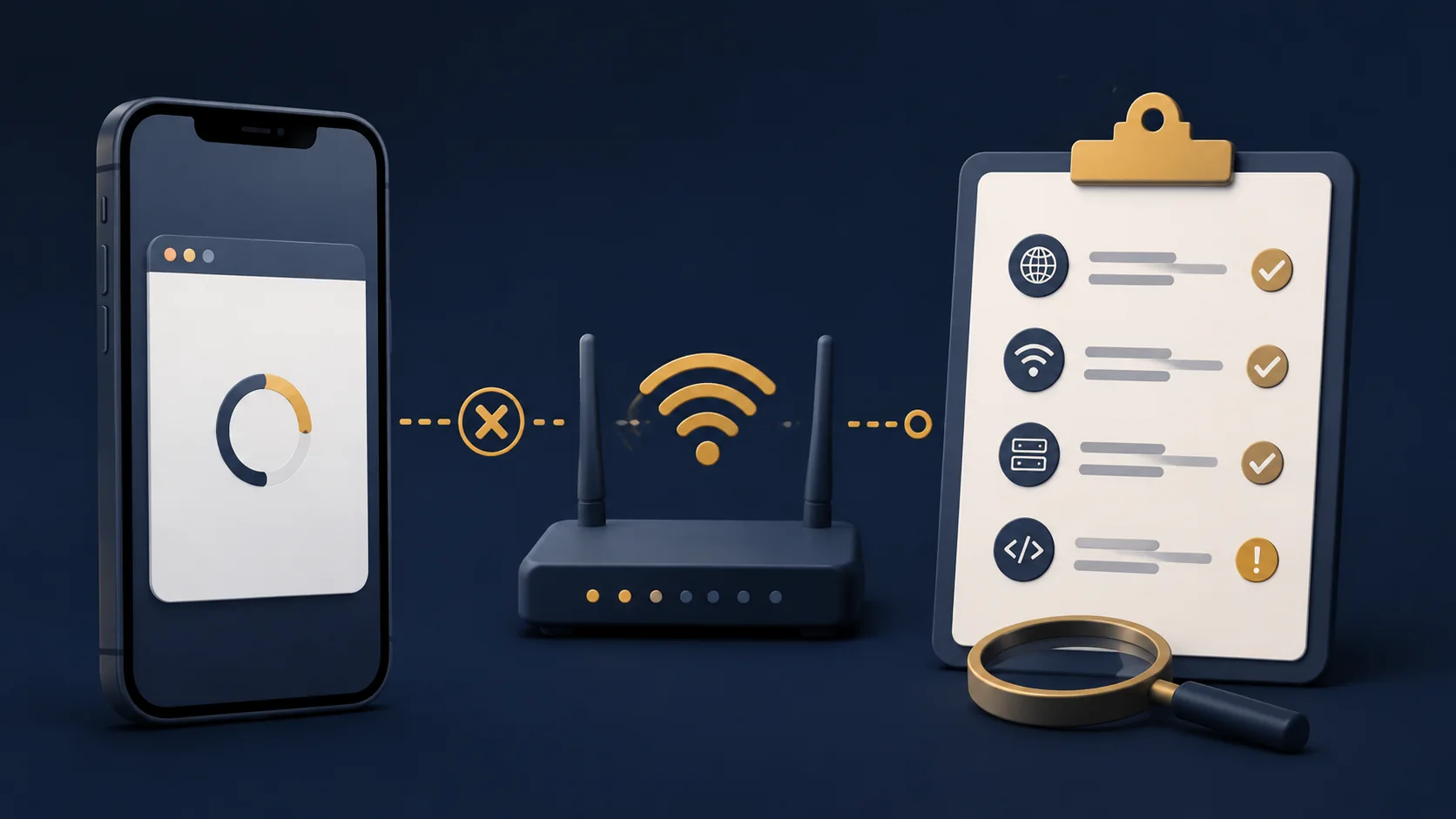
PH33 website not loading: identify the affected page
Open the PH33 homepage by entering its address directly in your browser. The Login and Register buttons on this website lead to a separate domain. If the homepage opens but the destination does not, record the destination shown in the address bar. Report that address rather than describing every problem as a PH33 homepage error.
Do not assume that two domains have the same availability, account system or support process. If an unexpected address or a browser security warning appears, stop before entering account details.
Match the symptom to the next check
No websites open
Check whether your phone has a working internet connection. Test an unrelated website you normally use before changing anything in your account.
Other websites open, but ph33p.ph does not
Try the exact homepage address in another browser. Record the error message and whether the result changes.
The homepage opens, but the account destination fails
Treat this as a problem at the destination until further checks show otherwise. Save its domain and the time of the attempt.
A sign-in form opens and rejects your details
The page has loaded. Follow the recovery or support process displayed by that account service; repeatedly changing your browser is unlikely to resolve an incorrect password.
The browser closes or freezes
Close unused tabs and apps, reopen the browser, and retry. If needed, restart the phone before attempting more changes.
Read the browser error before choosing a fix
A browser message describes the stage that failed; it rarely proves the underlying cause. Copy its wording before reloading. Chrome’s help documentation distinguishes address-resolution, connection and redirect errors, so these messages should not all lead to the same response.
The address cannot be resolved
ERR_NAME_NOT_RESOLVED points to a problem resolving the website address. Check the spelling and the exact domain you intended to open. If a saved link contains a typing error, repeatedly reloading it will not correct the address. If the address is correct, include the message in your report rather than guessing a replacement domain.
The connection takes too long
ERR_CONNECTION_TIMED_OUT means the connection attempt did not complete in time. It does not tell you whether the website, your network or something between them caused the delay. Compare another website and browser, then report the pattern. Do not interpret a timeout as confirmation that an account has been suspended.
The browser reports too many redirects
A redirect-loop message means the page keeps sending the browser onward without completing the expected journey. Record the domain where the loop appears. If clearing site data is being considered, first read the next section about saved sessions; deleting everything immediately can remove useful context without resolving a server-side problem.
The address opens, but a control does nothing
Describe the particular control and whether anything changes after you select it. For example: “The page remains visible and the address does not change.” This is more precise than “the whole website is down”. Do not keep submitting the same form if you cannot tell whether a previous attempt was accepted.
Run a short test without changing everything at once
- Record the starting point. Note the exact address, error text, browser and whether you are on Wi-Fi or mobile data. Remove private information from any screenshot.
- Try another ordinary website. If that also fails, focus on the connection first. If it works, continue with the affected address.
- Try a second browser on the same network. Keep the address unchanged. A different result helps narrow the investigation to browser-specific behaviour, but does not prove a single cause.
- Compare connections only when appropriate. On a connection you are authorised to use, compare Wi-Fi with mobile data, allowing for data charges. Use this to diagnose a fault, not to bypass an access restriction.
- Stop and document the result. If the same address still fails across browsers and connections, report the evidence. You cannot establish a worldwide outage from a test on one phone.
For example, suppose the homepage opens in both browsers but the account destination times out in both. That result helps support locate the failing stage. It does not establish that your password is wrong, and it gives you no reason to reset it solely because of the timeout.
What your comparison results do and do not prove
These examples are hypothetical. They show how to interpret a test, not the current availability of PH33.
Example: one browser works on the same phone
You open the same address on the same Wi-Fi connection in two browsers. One loads the page and the other shows an error. That result makes a complete website outage less likely at the time of the test. It gives support a useful browser-specific lead, but it does not prove that cookies are responsible. Keep the working browser as your comparison while checking the affected one.
Example: Wi-Fi fails, mobile data works
Keep the phone, browser and address the same while comparing two connections you are authorised to use. A different result suggests that the connection path matters. It does not prove that your router is broken or identify a fault at your mobile provider. If the network shows an explicit access restriction, follow it; do not use the comparison as a way to bypass that restriction.
Example: only the account destination fails
The homepage loads, its text is readable, and the problem starts after an account button takes you elsewhere. Record both the working homepage and the failing destination. A report containing only the homepage address would send the investigation to the wrong stage. Avoid sharing a full redirected URL if it contains personal identifiers or tokens.
What to check in Chrome and Safari
Chrome on Android
Google’s Chrome Help recommends closing other tabs and apps, restarting Chrome or the phone, and trying another browser when pages fail or the app crashes. Begin with those reversible checks. Do not start by reinstalling the browser or removing all stored data when a simple restart has not yet been tried.
Safari on iPhone
Apple Support recommends checking another connection and restarting the device when Safari will not load websites. If the page opens but interactive controls do not work, check whether JavaScript is enabled in Safari’s advanced settings. Menu locations can vary with your iOS version.
Clearing website data can affect saved sessions and sign you out. Before doing so, make sure you can use the account service’s recovery process. Read the browser’s description of what will be removed, and avoid deleting passwords or unrelated browsing data as a routine first step.
Before clearing cookies or website data
Google’s cookie guidance explains that deleting cookies may sign you out of sites. Treat this as a change with consequences, not a harmless refresh. If you do not know how to recover access to a signed-in account, resolve that first.
Cache, cookies, browsing history and saved passwords are different categories in browser settings. Read the selected options and their scope. A site-specific removal, when your browser provides it, affects less than clearing data for every website. Do not select unrelated categories simply because a general troubleshooting checklist says to “clear everything”.
After an authorised data-clearing step, repeat the same test once and note the result. If nothing changes, stop cycling through the same action. Repeated deletion does not provide new evidence and may repeatedly remove sessions you intended to keep.
When to stop troubleshooting
Do not continue past a certificate or unsafe-site warning just to make the page open. Record the wording and contact the relevant website’s support. A warning needs investigation; it is not an instruction to disable protection.
If the service explicitly says access is restricted or unavailable in your location, follow its stated requirements. This guide does not recommend VPNs, proxy sites or alternative domains to get around restrictions.
You also do not need to install an APK to test whether ph33p.ph loads in a browser. The homepage currently provides no direct APK or App Store download. An app image is not an installation file.
Send a report that support can use
For a problem with ph33p.ph itself, the website’s listed contact email is [email protected]. For an error on the separate account website, use the support channel identified by that service. Website contact details do not establish access to another service’s account records.
Include the following information, replacing the descriptions with your observations:
- Affected domain: the address where the problem occurs, without private URL parameters or recovery tokens.
- Time and time zone: when you last saw the error; include Philippine Time if that is your local time.
- Device and browser: phone model, operating system and browser version if available.
- Observed result: exact error text, blank screen, frozen browser or rejected sign-in.
- Comparison: whether the homepage, another website, another browser and another authorised connection worked.
Never include a password, one-time code, full payment details or an unredacted account screenshot. Keep a copy of the report so you can describe what changed if the page becomes available again.
For other website-access questions, browse PH33 Guides to find the appropriate help and contact information.
